
Getting started with your Thrive adviser portal
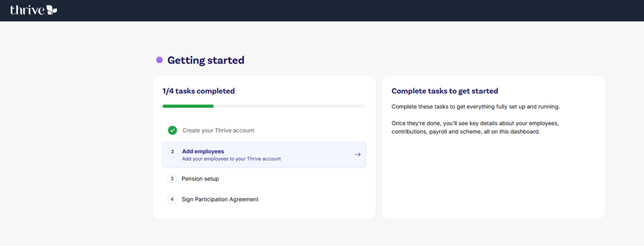
Every company account has a few key steps to complete once you're signed in. Here's a quick, clear guide to get you set up.
Step 1: Set up your Thrive adviser account
First up, create your Thrive account. Follow the prompts to get registered and into the Adviser Portal. That’s where you’ll manage everything going forward.
Step 2: Manage your companies
On your dashboard, you’ll see a list of all the companies you support.
Click Manage next to a company to begin setting up its pension scheme.
Step 3: Add your team
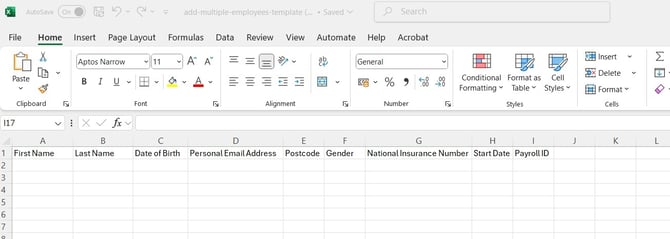
Now you've selected the account, it’s time to add the employees details. Download the template and follow the steps in the portal to upload their info. This makes sure everyone’s pension details are logged correctly.
Step 4: Set up your pension
Next, you'll set up the pension scheme with Smart Pension through Thrive. You’ll get a simple introduction and clear instructions to launch your scheme. Once you’re done, you’ll get an email to confirm everything's in place.
More on this here: Setting up and launching your pension
Step 5: Sign the participation agreement
Once the scheme is launched, Smart Pension, our pension partner, will email you a participation agreement to sign. It’s a legal document but no printing or post needed. Just follow the link in the email to sign it digitally.
Want to read more? Learn about the participation agreement
All set? Head to your dashboard
Once you’ve completed the setup, you’ll land on the Thrive dashboard for the company you’ve selected. From here, you can manage employees, view pension contributions, and take care of everything in one place.
Supporting more than one company?
Just head back to your adviser dashboard to see the full list. You can follow the same simple steps to set up and manage each one.
Need support?
If you get stuck at any point, we’re here to help.
Contact Thrive Customer Support