
Need to give someone access to your Thrive account? Here’s how to add a new user in just a few clicks.
1. Sign into the portal
Start by signing into the Thrive Employer Portal with your usual sign in details.
2. Go to the Users section
-
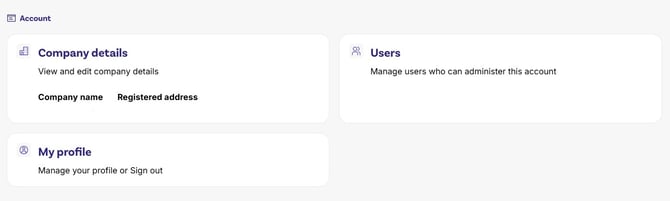
From your dashboard, click ‘Users’.
-
Or head to the top-right menu, select ‘Company’, then choose ‘Users’.
3. Add a new user
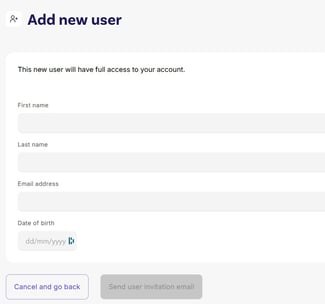
In the Users section, click the ‘Add New User’ button. This will open a short form.
4. Fill in their details
Complete the form with the new user’s name, email address and date of birth. Then click ‘Send User Invitation Email’.
They’ll get an email with a link to sign in and create their account.
And you’re done! New user added.
Need help?
We’re just a message away. Get in touch with Thrive Support if you need a hand.