
Just getting started with Thrive? One of the first things you’ll do is add employees. This works whether you’re an employer adding your own staff, or an adviser uploading employees on behalf of a client company.
Already signed in and coming back to add more? Here’s how to add new employees later on.
1. Select ‘Add Employees’
From your dashboard, select the company you are working on and then click the ‘Add Employees’ task. This kicks off the process.
2. Download the template
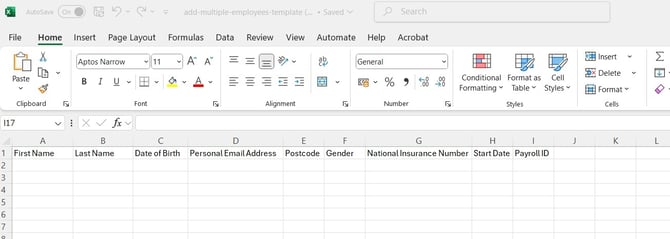
You’ll be asked to download a CSV file. This is your template. Use it to enter your clients employee details in the right format.
3. Fill in the team’s info
Open the CSV and complete it with all the required fields. Double-check that everything’s accurate, then save the file somewhere secure.
4. Upload the file
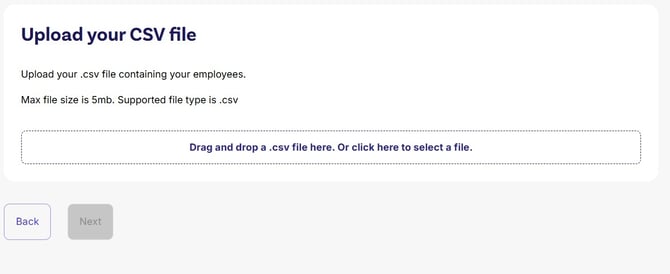
Head back to the adviser portal. You can either drag and drop your file into the upload area or use the ‘Upload File’ button.
5. Map your columns
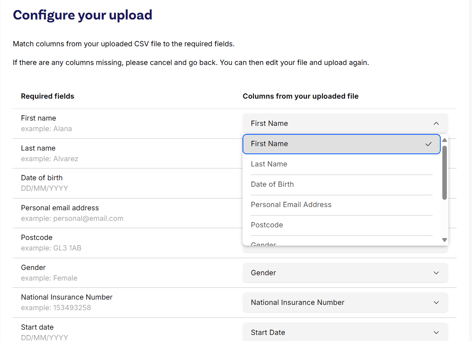
You’ll now see a screen where you match the fields from your file with the ones in Thrive. Use the dropdown menus to get everything aligned.
6. Review your data
Take a moment to check all the uploaded info looks right. If something needs tweaking, you can edit employee records directly on this screen.
7. Upload employee data
Once it all looks good, click ‘Add employees and send welcome emails’. The employees you add will get an invite to join Thrive.
That’s it! Employees are now set up and ready to go.
Need help?
Contact our support team if you get stuck or want someone to walk through it with you.