
Adding employees to Thrive is a key step in setting up and managing the pension. Here’s how to do it quickly and confidently.
Step 1: Sign in
Head to the Thrive Adviser Portal and sign in using the details you set when creating your account.
Step 2: Go to the Employees section
From your dashboard, choose the company you’re working on, then click Employees. You can also find it using the menu in the top-right corner.
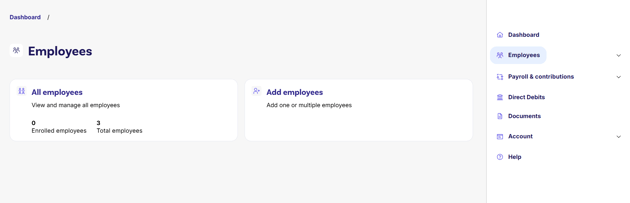
Step 3: Click ‘Add Employees’
Once you’re in, hit the Add Employees button to get started.
Step 4: Choose how you want to add them
You’ll see two options:
-
Add Single Employee – for one person.
-
Add Multiple Employees – to upload a group at once.
Step 5: Adding a single employee
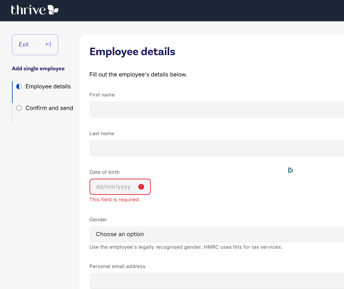
If you’re adding one employee for a client company:
-
Fill in their details (like name and date of birth)
-
Check the info is correct.
-
Hit submit.
The employee will get a ‘Welcome to Thrive’ email to help them get started.
Step 6: Adding multiple employees
If you're adding several employees for a client company:
-
Choose Add Multiple Employees.
-
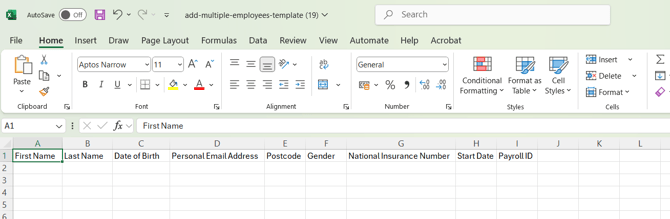
Download the CSV template.
-
Fill it out with the employee details and save it.
-
Upload the file back into the portal.
That’s it, the employees will be added and will receive their welcome email.
Need help?
We’re here if you get stuck.
Contact Thrive Customer Support