
You’ve created your account and added employees for your client company. Next up? Getting their workplace pension up and running. It’s all done in the Thrive adviser portal, and we’ll guide you step by step.
1. Start the 'Pension Setup' task
In your dashboard, select the company you are working on and then look for the task called ‘Pension Setup’. Click to get started.
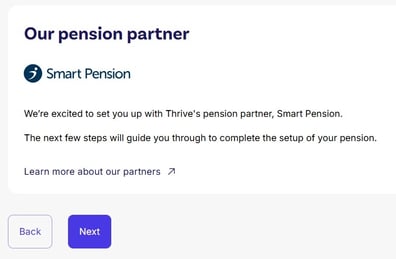
2. Meet our pension partner
You’ll see a short intro to our pension partner, Smart Pension. This explains how the scheme works and what to expect. Once you’ve read through, hit ‘Next’.
3. Check your company details
Check the company details are correct for the client you’re setting up. If anything’s out of date or incorrect, update it here before moving on.
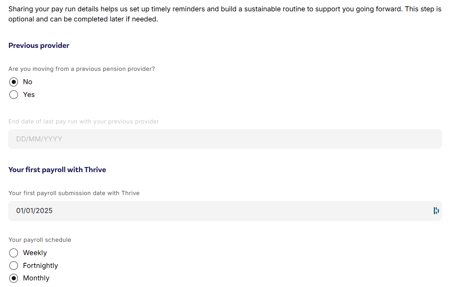
4. Add your pay run info
Enter the client company’s payroll details – for example, when payroll is usually run. This keeps everything in sync.
5. Choose your payroll software
Select the payroll software used by your client company. This helps us tailor the setup and ensure the right support if needed.
6. Get ready to sign your Participation Agreement
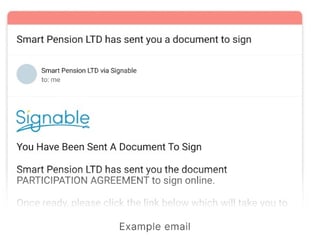
We’ll explain what the Participation Agreement is and what it means for the company you're setting up. You won’t sign it just yet – you’ll get an email directly from Smart Pension with everything you need to complete it.
Want more detail? Here's how to sign your Participation Agreement.
7. Launch your pension
Once you’ve checked everything’s in place, it’s time to go live. Click ‘Launch Pension’ to finish the setup.
That’s it. The client company’s pension scheme is now live and ready to go.

Need help?
Our customer support team’s just a message away. Get in touch here.