
Submitting contributions through Thrive is straightforward. Thanks to our Smart Pension integration, you can upload a PAPDIS file straight from your payroll software into the Thrive Adviser Portal.
Here’s how to do it:
Step 1: Payroll software
Make sure each client’s payroll software is set up to export pension data in PAPDIS CSV format. This format works seamlessly with Smart Pension, helping you transfer data securely and accurately.
Step 2: Sign into the Thrive Adviser Portal
Sign in to the Adviser Portal, then select the company you’re working on. New here? Use the instructions from your welcome email to get set up and complete your first tasks.
Step 3: Go to Payroll & Contributions
In the company's dashboard, click Payroll & Contributions, then select Manual PAPDIS Upload.

Take care to ensure you're uploading contributions for the right company - you'll see the company name in the top right corner.
Step 4: Add new joiners
If the client company has new employees since the last upload, make sure their details are included in the payroll software - and in the PAPDIS file.
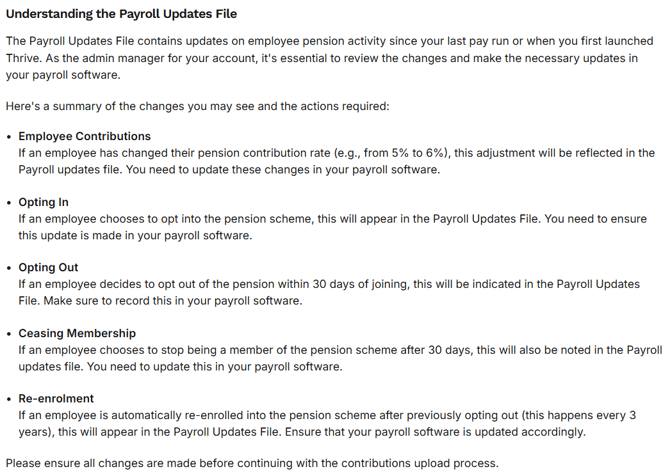
Step 5: Download the Change File
This step shows any updates to employee details. You can:
-
Download the change file as a CSV and import it into the payroll software.
-
Or manually update the info using the file as a reference.
Keep payroll data up to date before creating the PAPDIS file.
Step 6: Export your PAPDIS file
Once everything’s up to date, export a PAPDIS CSV from the payroll system. You’ll usually find this under pension or contributions export options.
Save the file somewhere secure on your computer.
Step 7: Upload your file to Thrive
In the Adviser Portal, go to the chosen company’s Payroll & Contributions section. Upload the PAPDIS CSV, double-check the pay period and file format, then click Submit.
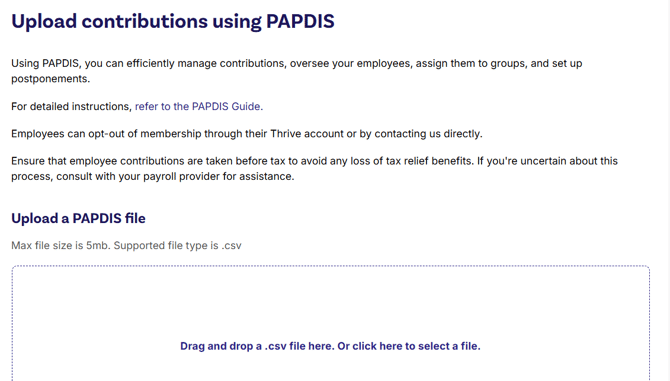
Step 8: Check for confirmation
You’ll see a message confirming the upload. If there are any issues, like formatting problems, we’ll flag them straight away so you can fix and re-upload.
Need help troubleshooting? See our guide to common PAPDIS errors
Need support?
If you get stuck — whether it’s exporting a company’s file or fixing an error — we’re just a click away